
Core module operation
To start EQUINOX Core, run its shortcut located in the start menu or on the desktop. To use EQUINOX Configurator or EQUINOX Web make sure this module is running first.
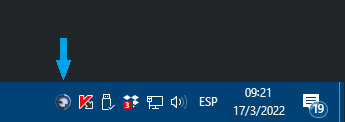
The module starts minimized; double-click the icon in the taskbar to maximize the window.
Main window
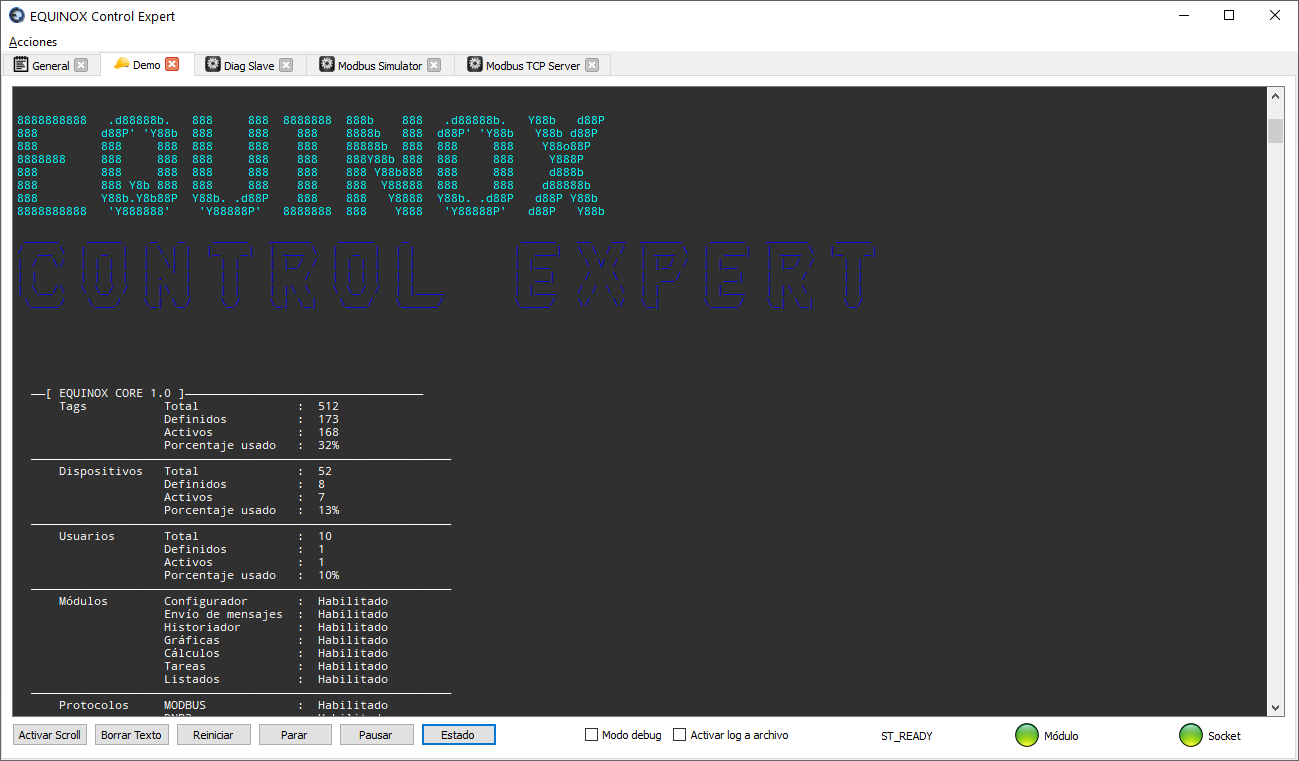
The main window consists of the Actions menu and several tabs. The tab types are:
| Tab | Description |
|---|---|
| General | Contains general information about the module, information or error messages regarding the startup or shutdown of the different modules |
| Project | This tab runs the currently active SCADA project, which was previously activated in the initial window of EQUINOX Configurator |
| Other modules | External programs launched together with the SCADA, defined in the modules.json file |
Actions menu items
| Action | Description |
|---|---|
| Projects | Allows starting, stopping or restarting the projects defined in the system. Only one of them can be running at a time. |
| Modules | Allows starting, stopping or restarting the external programs defined in the modules.json file |
| Configurator | Launches EQUINOX Configurator |
| Settings | Global and module Settings of the system |
| System status | Reports on the status of the database and the web server |
| Information | Provides information about the license and the hardware identifier that may be required if you purchased a soft license |
| Shut down system | Closes EQUINOX Control Expert |
Project tab
Displays messages related to the running project: configuration loading, connection status of Devices and Channels, and periodic polling of Points, detailing their readings It contains the following buttons:
| Button | Description |
|---|---|
| Disable scroll | Stops the vertical scrolling of the text |
| Clear text | Clears the text in this tab |
| Restart | Restarts the project and reloads the configuration to pick up any changes made to the project |
| Stop | Stops the project execution |
| Pause | Interrupts data acquisition |
| Status | Pop-up window showing the current status of Devices and Channels, as well as listing the configuration of these elements and of the Scan groups. |
| Debug mode | Allows viewing the data frames transmitted and received in hexadecimal. Useful for troubleshooting |
| Enable file log | Sends all the on-screen text to a file named eq-project-name.log located in the logs subfolder. This should only be enabled temporarily while troubleshooting. If left enabled, the log file will grow indefinitely until it fills up the disk. |
Meaning of the LED indicators
The indicator LEDs can take three states, with the following meaning:
| LED | Meaning |
|---|---|
 |
Stopped state |
 |
Starting up or stopping |
 |
Normal operating state |