
Users
Creation of users with system access permissions, determination of the Displays they will have access to, and other settings.
Screenshot
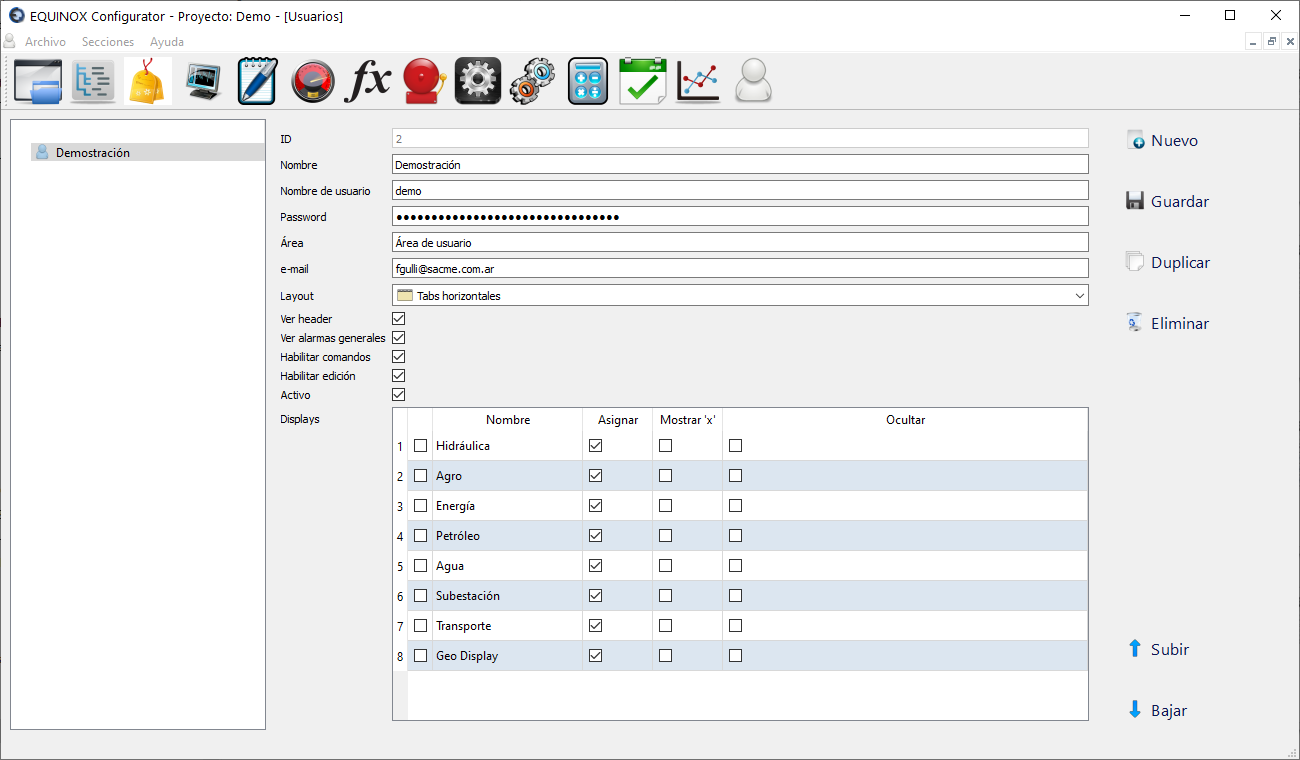
Definition
- Click New in the upper right area of the window
- Fill in the following fields
Field Description Name Name of the person or identifying text for the user Username Username used to access the system Password Password used to access the system Area Area the user belongs to; not used by the system e-mail User’s email address. Used for sending alert messages, see Alarm Groups Layout Defines the look of the browser user interface, allowing tabs to be placed at the top, on the side, or hidden Show header Defines whether the top part with the Equinox logo will be shown in the browser user interface Show general alarms Defines whether a list of the most recent alarms will be shown at the bottom of the screen Enable commands Enables or disables telecommands for this user Enable editing Defines whether this user will have permission to execute telecommands Active Activates or deactivates the user - Click Save
Display selection
- Select the displays the user should have access to in the Assign column
- Select the displays that can be closed by the user in the Show ‘x’ column; they can be reopened using Links
- Select the displays that will remain hidden at login in the Hide column; they can be opened using Links
- Select one or more displays in the first column and use the Up and Down buttons to change the order in which they will be listed